Connect OpenClaw to WeChat
The Tencent Cloud route for connecting OpenClaw to WeChat, covering Cloud Phone setup, QR pairing, and the current boundaries of this channel.
This is a Tencent Cloud route, not the default official channel path
If you only read the main OpenClaw docs, WeChat can look missing. That is because the current mainstream official channel docs still center Telegram and other established integrations.
But Tencent Cloud's Cloud Phone OpenClaw channel configuration doc, updated on March 23, 2026, now documents a WeChat channel inside its visual channel panel.
That means WeChat is now a real route for Tencent Cloud Cloud Phone deployments, even if it is not yet the general "every OpenClaw install works this way" story.
What Tencent Cloud currently documents
Tencent Cloud's current Cloud Phone guide describes this flow:
- open the OpenClaw configuration panel on the cloud phone
- go to Channels
- choose WeChat
- let the panel generate a pairing QR code
- scan that QR code with WeChat on your local phone
The same doc also lists two important prerequisites:
- WeChat should be updated to 8.0.70 or newer
- if the WeChat channel does not appear, recreate the instance with the latest image
Basic setup flow
- Update the Tencent Cloud OpenClaw version first so the latest channel options are available.
- Open the OpenClaw configuration app on the cloud phone desktop.
- Enter Channels, choose WeChat, and click Go to Authorization.
- Wait for the pairing QR code to appear.
- Scan it with WeChat on your local phone.
- Test a simple message before you add any other channels or automation.
Screenshot guide
Step 1. Update the Tencent Cloud OpenClaw version
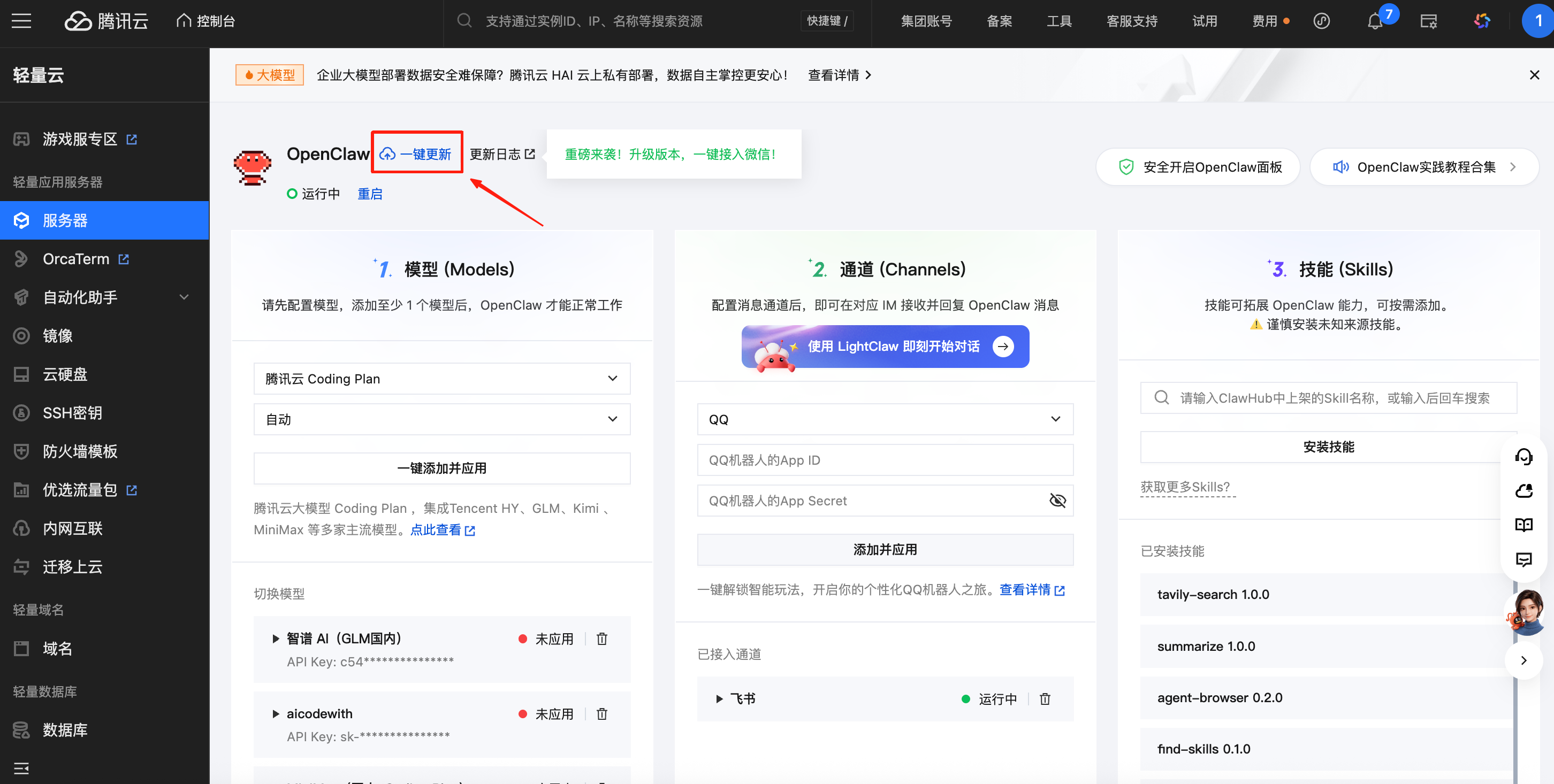
Start by updating the Tencent Cloud OpenClaw build. If the WeChat channel entry is missing, this is the first thing to fix.
Step 2. Choose WeChat in Channels and click Go to Authorization
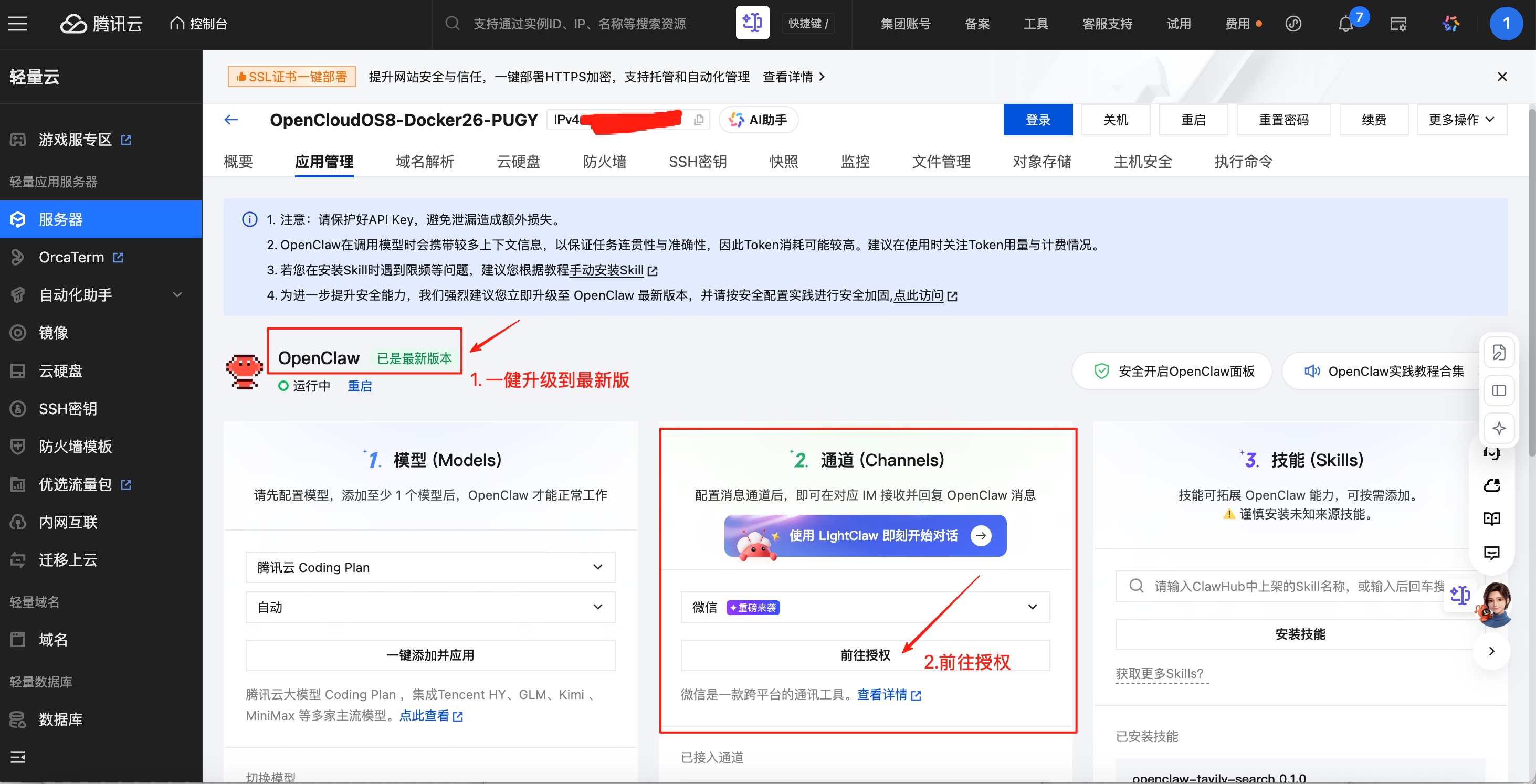
After the version is current, open the OpenClaw config panel, enter Channels, select WeChat, and click Go to Authorization to generate the pairing flow.
Step 3. Use WeChat Scan to finish pairing
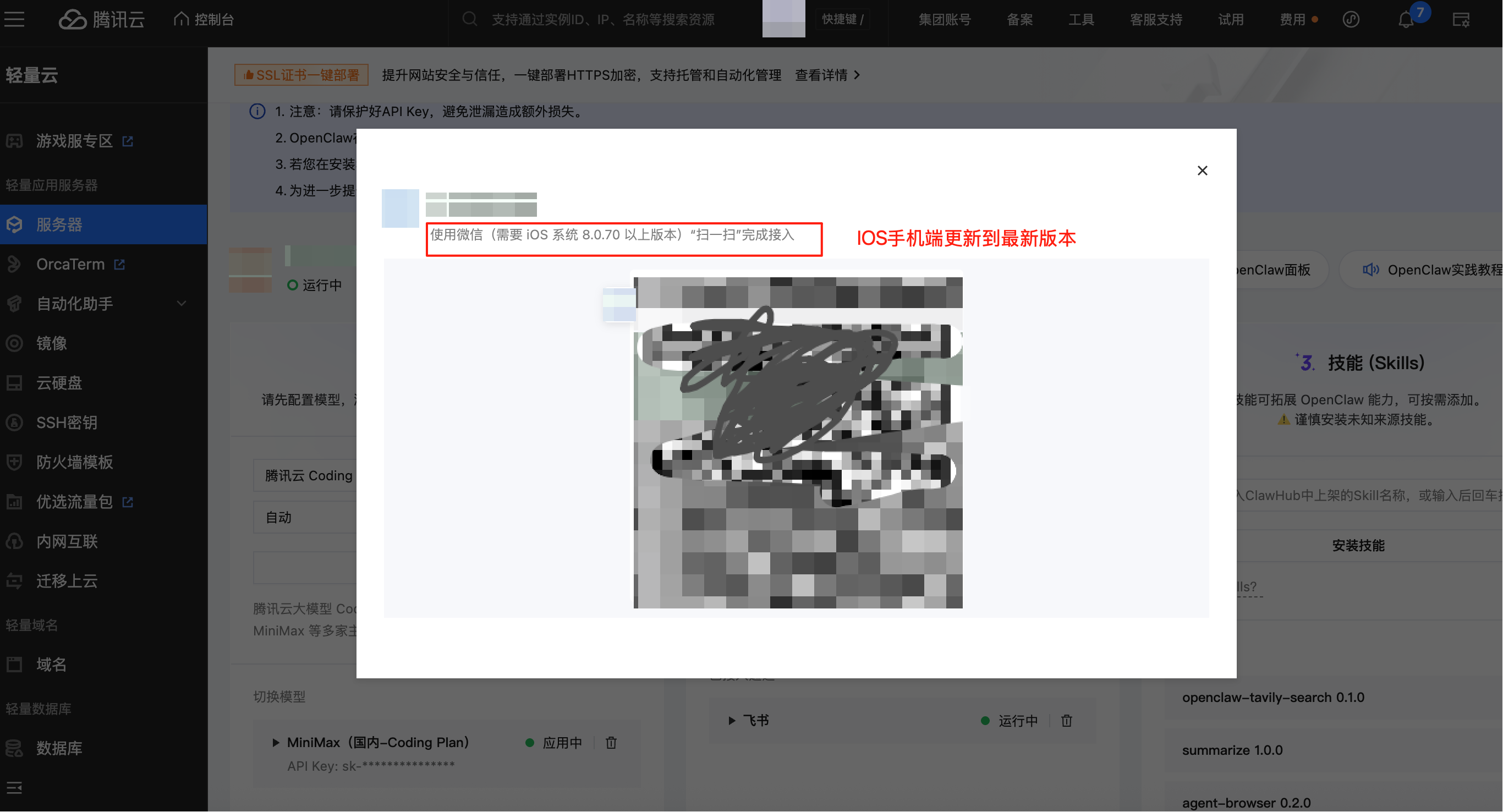
Use the Scan feature in WeChat to finish the connection. Right now, the practical requirement is an iOS WeChat client on 8.0.70 or newer, because that latest version is currently available on iPhone first.
When this route makes sense
WeChat is a practical choice when:
- your main audience or daily workflow already lives in WeChat
- you chose Tencent Cloud deployment anyway
- you want a China-native operator path without starting from Telegram
For many China-based operators, that is a very real advantage.
What this does not mean
Do not over-generalize this page.
- it does not mean every self-hosted OpenClaw install now has a universal WeChat channel
- it does not replace the mainstream Telegram-first learning path
- it is currently tied to Tencent Cloud's Cloud Phone packaging, image version, and visual panel flow
That is the right mental model: WeChat works here as a Tencent Cloud deployment route, not yet as the simplest cross-platform default.
Safer operating rule
Treat WeChat as a second-phase convenience, not the first system you debug.
Make sure these are already stable first:
- the Gateway is healthy
- one model path works
- auth and pairing behavior are understood
- your instance is not already overloaded with multiple channels
That rule matters even more on a route that depends on a cloud image and a panel-managed channel flow.
Where to go next
- Return to the Channels Hub
- Read Install OpenClaw
- Read OpenClaw Security & Cost Control
- Read OpenClaw Docs Guide